Last updated: 3 November 2026
An interactive display is a large touchscreen with a built-in computer that replaces the whiteboard, projector and meeting room PC. To choose an interactive display in Malaysia, match the screen size to your farthest seat, pick a Google EDLA-certified Android system, check the camera, microphones and wireless casting, and confirm the MCMC label and local support before you buy.
This guide is for office managers, IT teams and school administrators comparing interactive displays for meeting rooms, classrooms and lecture halls.
What is an interactive display?
An interactive display is a large LCD or LED touchscreen with its own operating system. It is also called an interactive flat panel (IFP) or smart board.
You can write, draw, open files, browse the web and join video calls on the screen itself. No separate projector or PC is needed for everyday use.
Most models in 2026 run Android. Many also accept an optional slot-in Windows PC module and an HDMI or USB-C connection from a laptop.
Interactive display vs projector vs smart TV: which should you buy?
An interactive display is the best fit when people need to write, touch and present on the same screen. A smart TV only shows content. A projector suits very large rooms on a tight budget.
| Feature | Interactive display | Projector + whiteboard | Smart TV |
|---|---|---|---|
| Touch and writing on screen | Yes, multi-touch | Only with an interactive projector | No |
| Visibility with lights on | Good | Weaker in bright rooms | Good |
| Built-in camera and microphones | Available on many models | No | Rarely |
| Wireless casting from laptops and phones | Built in or via casting dongle | Needs extra hardware | Limited, often consumer apps |
| Ongoing upkeep | Software updates | Alignment, cleaning, lamp or light source | Software updates |
What size interactive display do you need?
Choose a screen whose height is at least one sixth of the distance to the farthest seat for slides and video. For spreadsheets, drawings and small text, use one quarter of the distance instead. Both are common AV design rules of thumb.
Formula: minimum screen height = distance to farthest seat ÷ 6 (slides and video) or ÷ 4 (detailed content). For a 16:9 screen, screen height in metres = diagonal in inches × 0.0254 × 0.49.
| Screen size (16:9) | Width (m) | Height (m) | Farthest seat, detailed content (4× height) | Farthest seat, slides and video (6× height) | Typical room |
|---|---|---|---|---|---|
| 65 inches | 1.44 | 0.81 | About 3.2 m | About 4.9 m | Huddle room, 4–6 people |
| 75 inches | 1.66 | 0.93 | About 3.7 m | About 5.6 m | Meeting room, 6–10 people |
| 86 inches | 1.90 | 1.07 | About 4.3 m | About 6.4 m | Boardroom or classroom |
| 98 inches | 2.17 | 1.22 | About 4.9 m | About 7.3 m | Large classroom or training room |
| 110 inches | 2.44 | 1.37 | About 5.5 m | About 8.2 m | Lecture room or hall |
| Worked example: classroom, last row 6.2 m away | Calculation | Result |
|---|---|---|
| Minimum height for slides and video | 6.2 ÷ 6 | 1.03 m → 86-inch display (1.07 m) meets it; 75-inch (0.93 m) does not |
| Minimum height for detailed content | 6.2 ÷ 4 | 1.55 m → taller than a 110-inch display (1.37 m); use a second screen or move detailed work closer |
Rooms deeper than about 8 m usually need a second screen at the side or a dual-screen setup. Our guide to interactive flat panel sizes covers delivery clearance and dual-screen layouts.
Which interactive display specs matter most?
Focus on the specs that change daily use: the operating system, touch quality, built-in conferencing hardware and connectivity. Panel brightness and speaker power matter less in most offices and classrooms.
For terms such as optical bonding and anti-glare glass, see interactive flat panel technology explained.
| Spec | What to look for | Why it matters |
|---|---|---|
| Resolution | 4K UHD (3840 × 2160) | Keeps small text sharp on 75 inches and above |
| Operating system | Recent Android version, Google EDLA certified | Official Google Play apps with Play Protect app scanning |
| Touch points | 20 or more; 40–50 for classrooms | Lets several people write at once |
| Writing feel | Low latency, palm rejection, fine-tip accuracy | Writing feels like a whiteboard, not a tablet |
| Camera and microphones | Built-in camera with auto-framing, far-field microphone array | Hybrid meetings without a separate webcam |
| Connectivity | USB-C with video, power and touch in one cable; HDMI in; LAN and Wi-Fi | One-cable laptop connection |
| Wireless casting | Windows, macOS, Android and iOS support; casting button option | Guests can present without cables or apps |
| Device management | Central dashboard for updates and settings | IT can manage many rooms from one place |
What is Google EDLA and why does it matter?
EDLA stands for Enterprise Devices Licensing Agreement. It is a Google certification programme for large-screen Android devices such as interactive displays.
An EDLA-certified display ships with Google Mobile Services and the Google Play Store. Users install apps such as Chrome, Google Drive and Zoom from Google Play, not from an unofficial app store.
Displays without EDLA often rely on third-party app stores. Apps from those stores may be outdated or not optimised for large screens.
To confirm certification on a demo unit, open the Play Store, tap the account picture, go to Settings → About and check the Play Protect certification line.
What should offices look for in an interactive display?
- Video conferencing: check that Zoom, Microsoft Teams and Google Meet work either on the display or through bring-your-own-meeting (BYOM) from a laptop.
- Camera and audio coverage: test the camera framing and microphone pickup from the back of the room.
- Wireless presentation: guests should cast in one click without installing software. See our wireless presentation options.
- Security: ask how user sign-ins, saved files and casting access are cleared after each meeting.
- Room integration: confirm whether the display works with existing speakers, ceiling microphones or audio-video conferencing systems.
What should schools and universities look for?
Classrooms need teaching tools and student control more than conferencing hardware. Our comparison of smart meeting room vs smart classroom setups explains the differences in detail.
- Multi-user writing: 40 or more touch points so a group of students can work on the board together.
- Teaching software: a whiteboard app with templates, subject tools and export to PDF or a cloud drive.
- Google Play access: EDLA certification makes it easier to use Google Classroom and other learning apps on the board.
- Moderator control: the teacher decides which student device can cast to the screen.
- Lesson recording: for lecture halls, check whether the display works with a lecture capture system for live streaming and replays.
- Durability: anti-glare tempered glass, a sturdy wall mount or mobile stand, and child-safe cabling.
What compliance checks apply when buying in Malaysia?
Under Regulation 14 of the Communications and Multimedia (Technical Standards) Regulations 2000, communications equipment must be certified. MCMC lists Wi-Fi devices such as wireless routers and smart TVs among the equipment covered, so an interactive display with Wi-Fi should carry the label.
Certified equipment carries the MCMC label. You can verify a label with the MCMC Check Your Label app or at ecomm.sirim.my using the serial number.
Ask the supplier for the MCMC certificate, the local warranty terms and the service contact before you sign a purchase order.
How do you buy an interactive display in Malaysia, step by step?
- List every room, its size and the distance to the farthest seat.
- Pick the screen size for each room with the 6× height rule.
- Decide how each room will be used: hybrid meetings, teaching, training or presentations.
- Shortlist two or three EDLA-certified models that meet the spec table above.
- Book a hands-on demo and test writing, casting and a real video call.
- Check wall strength, power points and network ports for installation.
- Confirm the MCMC label, warranty period, on-site support and user training.
- Plan a pilot room first, then roll out to the remaining rooms.
What costs should you plan for beyond the screen?
The display itself is only part of the budget. Plan for these items when you compare quotes:
- Wall mount or mobile stand, and installation labour
- Optional Windows PC module, if users need desktop software
- Casting buttons, styluses and other accessories
- Network cabling and power points in each room
- Extended warranty and on-site support
- Training for teachers, staff or IT administrators
Ask each supplier to quote the same list so you can compare total cost fairly.
Which interactive display does AI HCM offer?
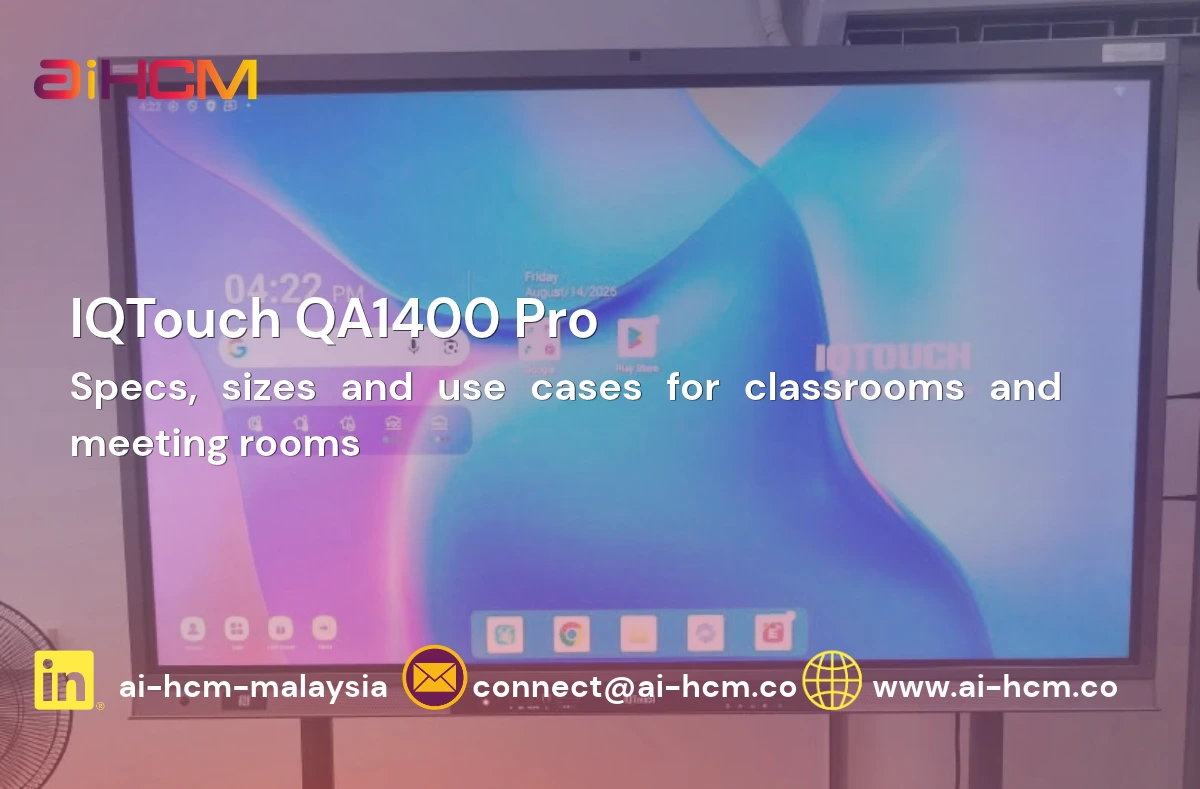
AI HCM supplies and supports the IQTouch QA1400 Pro interactive display in Malaysia. It runs Google EDLA-certified Android 14, supports 50-point touch with palm rejection and comes in sizes from 65 to 110 inches, with a built-in AI camera and far-field microphones for hybrid meetings and classrooms.
Frequently asked questions
What is the difference between an interactive display and a smart board?
Most people use the terms for the same thing. An interactive display, or interactive flat panel, is a large touchscreen with a built-in computer. Older smart boards were often whiteboards that worked with a separate projector.
What size interactive display do I need?
Measure the distance from the screen to the farthest seat. For slides and video, the screen height should be at least one sixth of that distance. For spreadsheets and small text, use one quarter. A farthest seat 6 metres away needs a 1-metre-tall screen for slides, which is an 86-inch display.
What does Google EDLA certified mean on an interactive display?
EDLA stands for Enterprise Devices Licensing Agreement. It is a Google programme that lets large-screen Android devices ship with Google Mobile Services and the Google Play Store. Users can install apps from Google Play instead of an unofficial store.
Does an interactive display need an MCMC label in Malaysia?
Under Regulation 14 of the Communications and Multimedia (Technical Standards) Regulations 2000, communications equipment must be certified. MCMC lists Wi-Fi devices and smart TVs among the equipment covered. Ask the supplier to confirm the MCMC label, and verify it in the MCMC Check Your Label app.
Is an interactive display better than a projector for a classroom?
For most classrooms, yes. A display stays clear with the lights on, needs no projector alignment and lets students write directly on the screen. A projector can still suit very large halls where one panel is too small.
Sources
- MCMC — Certification label for communications equipment
- MCMC — Guide to MCMC Label (PDF)
- Google Play Help — Check Play Protect certification status
AI HCM Interactive Display Team — the team at AI HCM that supplies and supports interactive displays and meeting room and classroom solutions for organisations in Malaysia.
Want to see how an interactive display works in your own meeting room or classroom? Explore the AI HCM interactive display range, then book a demo with our team →
Disclaimer: This article is for general information only and is not legal, tax or professional advice. Statutory rates, rules and product specifications in Malaysia can change. The information is accurate as of the date the article was published or last updated. Check the latest guidance from the relevant authority, or speak to a qualified adviser or our team, before making decisions.